Projects
Turn local folders into Orbit projects.
Add a folder, let Orbit analyze it, then run and inspect the project from the same workspace.
Dashboard
Scan running state before opening a project.
The dashboard lists every project with status, framework, package manager, branch state, domain, and row actions for browser, logs, metrics, start, and stop.
- Use All Projects for the full list.
- Use Running when you only need active projects.
- Double-click a row to open the project detail view.
- Use row actions for browser, logs, metrics, start, and stop without opening the detail view.
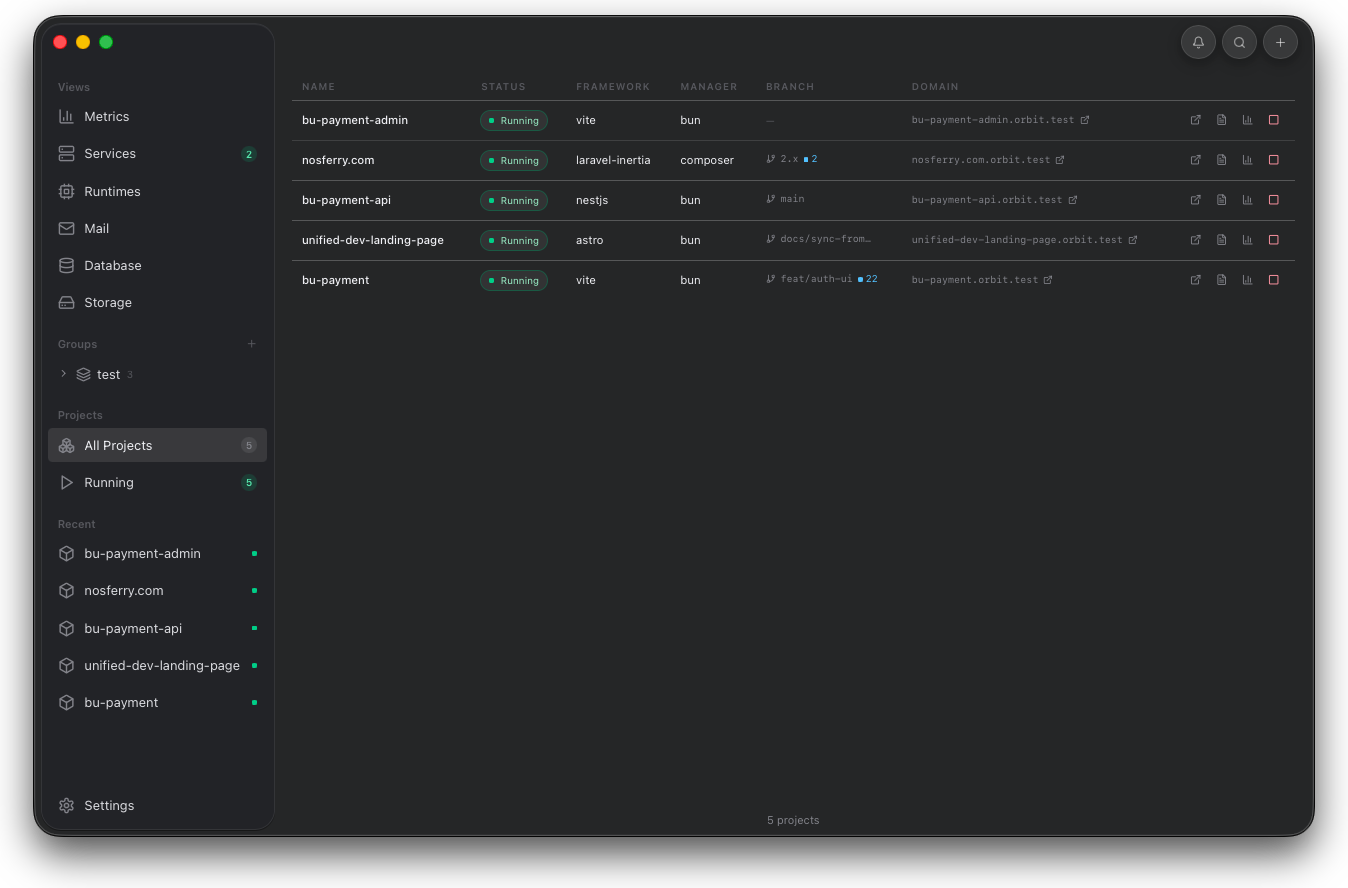
Use the table when you need a workspace-level decision: which app is running, which command owns it, and which action can be taken from the row.
Add project
Point Orbit at the project folder.
The add dialog analyzes the path, detects framework, package manager, dev command, and suggested domain, then warns when the layout is ambiguous or dependencies are missing.
- Open Add Project from the toolbar.
- Browse for the folder or paste the path.
- Review the detected framework, manager, command, and domain.
- Let Orbit install missing dependencies when the project needs them.
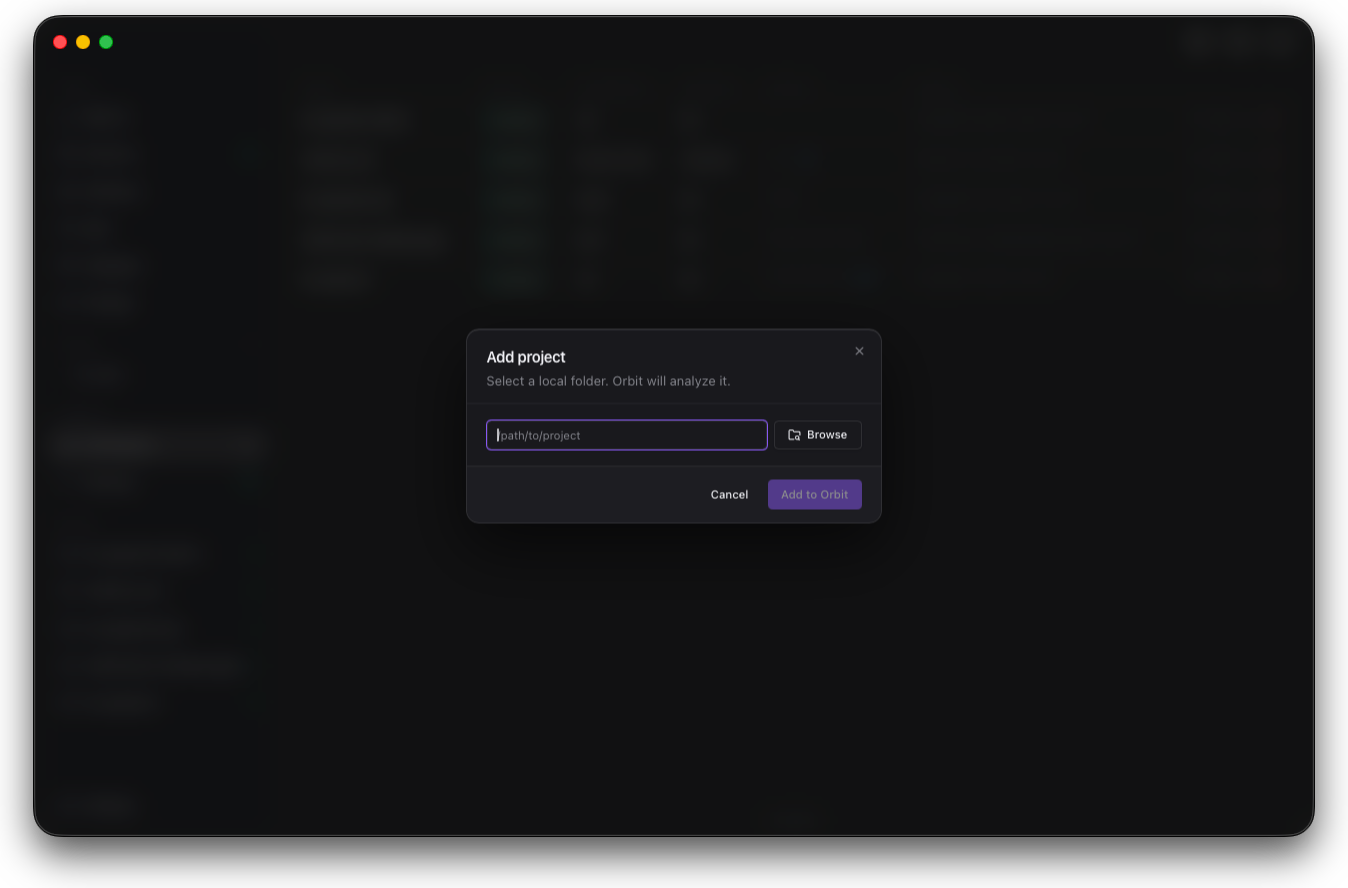
Review the detected framework, manager, command, and local domain before saving. A wrong value here becomes the runtime contract for the project.
Project detail
The selected project owns its runtime context.
Project detail shows the project domain, HTTPS state, framework, package manager, detected port, uptime, runtime actions, and the tabs that hold the rest of the workflow.
- Start, stop, or restart from the action row.
- Open the domain from the title area to use the proxied project URL.
- Use Details for resolved metadata and the project path.
- Move between Orbit AI, Logs, Requests, Terminal, Services, Env, and Share without leaving the project.
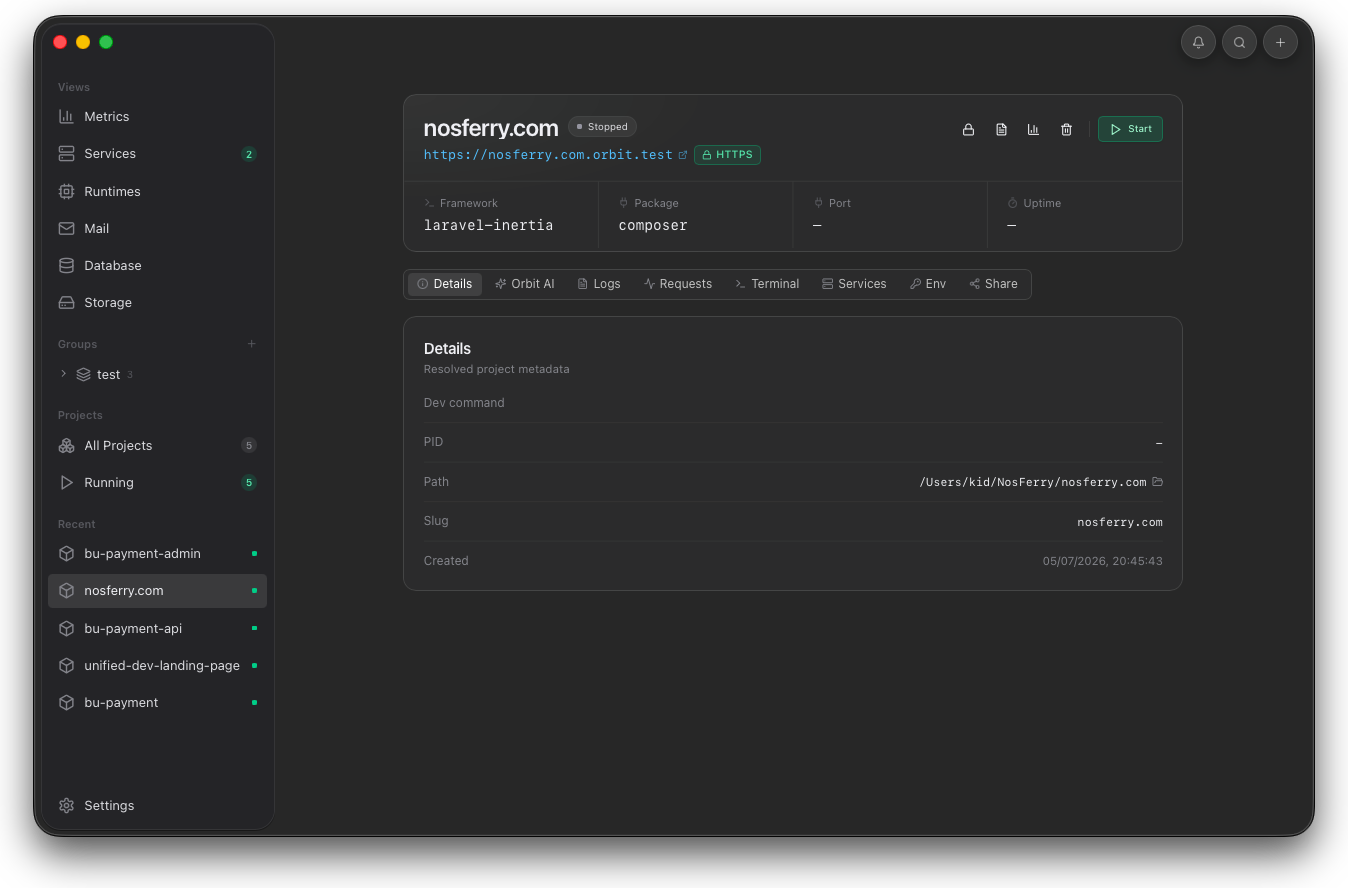
Start here when a single app needs attention. The header shows domain, HTTPS state, status, detected port, direct actions, and the project tabs.
Orbit AI
Ask about the selected project from its own tab.
Orbit AI lives in Project detail, beside Logs, Requests, Terminal, Services, Env, and Share. The tab keeps questions scoped to the selected project path and uses the provider configured in Settings.
- Enable Orbit AI in Settings General.
- Choose Claude Code or Codex CLI as the local provider.
- Open a project and switch to the Orbit AI tab.
- Ask about errors, slow requests, logs, commands, or project structure from that context.
- The selected provider must be installed and signed in on the machine.
- Project questions stay attached to the current project folder.
- If the tab is unavailable, confirm Orbit AI is enabled in Settings.
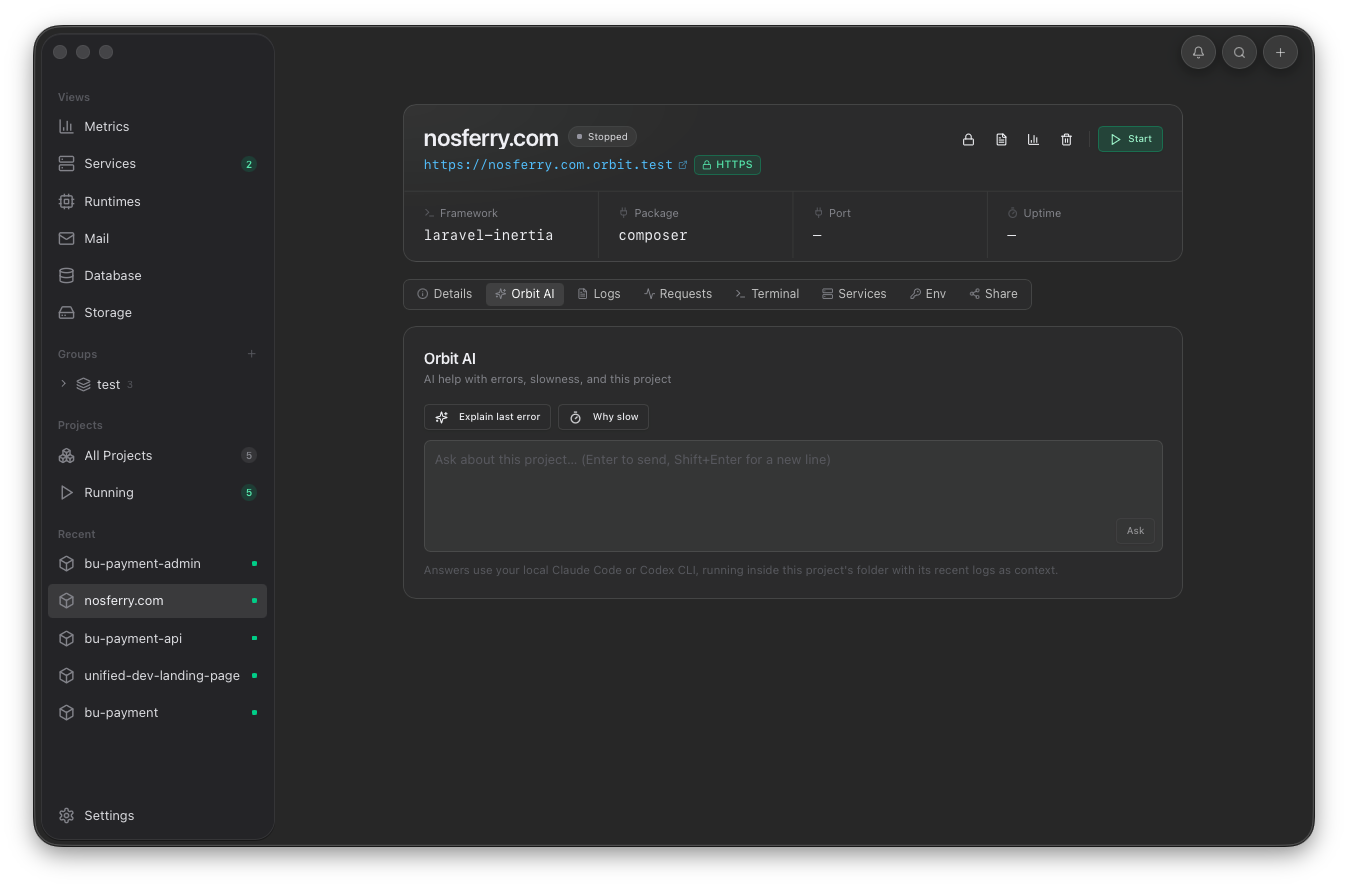
Ask from the project context when the question depends on logs, runtime state, commands, or files in that folder.
Docker Compose
Compose details appear in the project Details tab.
When a project contains compose.yaml, compose.yml, docker-compose.yaml, or docker-compose.yml, Orbit detects it from the project folder. The Details tab shows the Compose file, current containers, health state, and published ports.
- Keep the Compose file in the project root.
- Start the project from Orbit.
- Open Details to confirm detected Compose services, state, health, and published ports.
- Stop the project when the containers should stop with it.
- The Docker CLI must be installed and reachable by the desktop app.
- Compose services are listed from docker compose ps for the selected project.
- Warnings in Logs explain missing Docker or failed compose up commands.
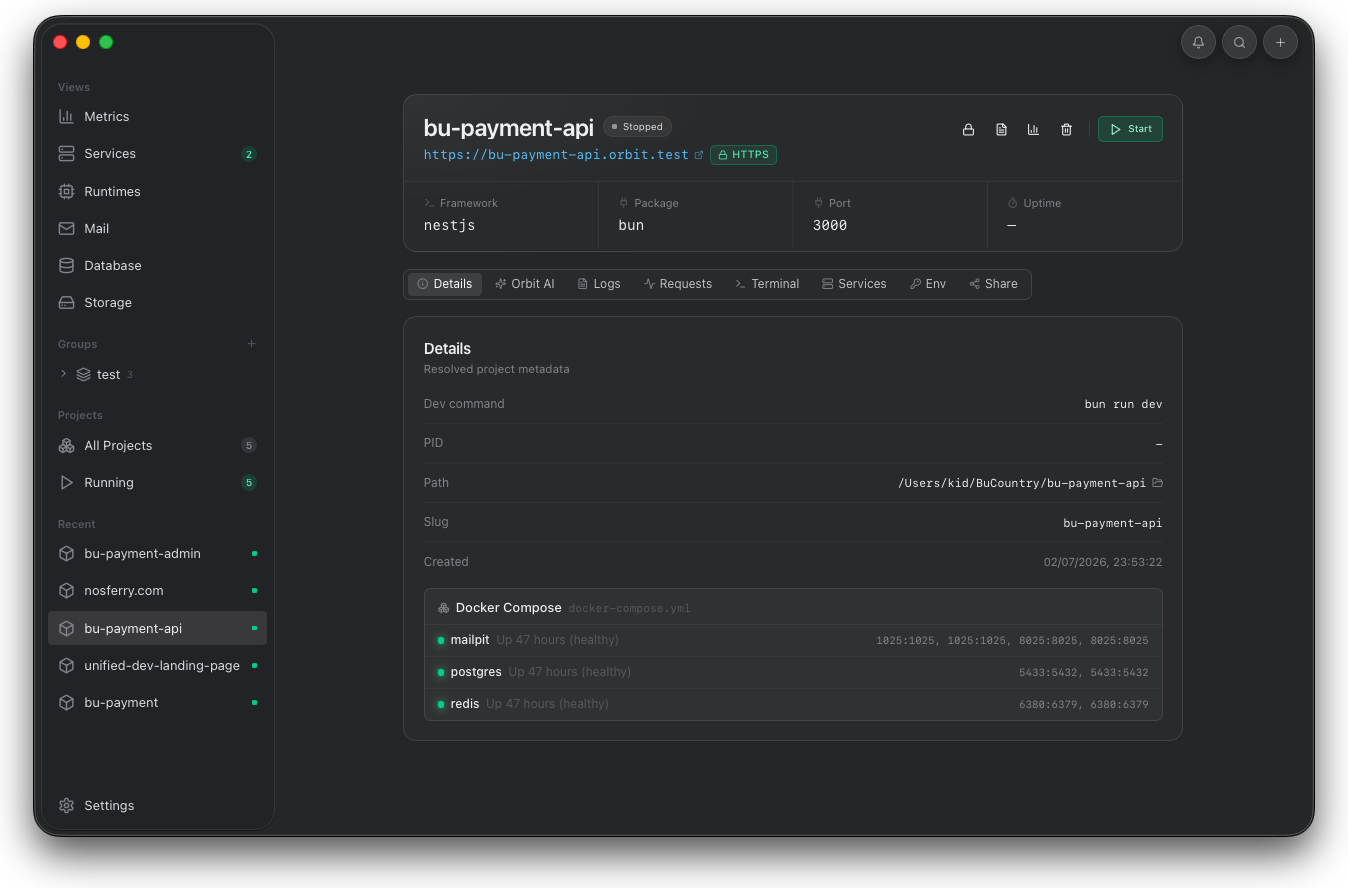
Use this view when a project depends on containers. Orbit keeps service health and published ports beside the runtime that needs them.
Environment
Edit variables beside the runtime that reads them.
The Env tab keeps project-specific configuration attached to the selected app, so local values can be reviewed without switching to another tool.
- Open the project detail view.
- Switch to Env when the fix is configuration.
- Edit the value and save before restarting the project.
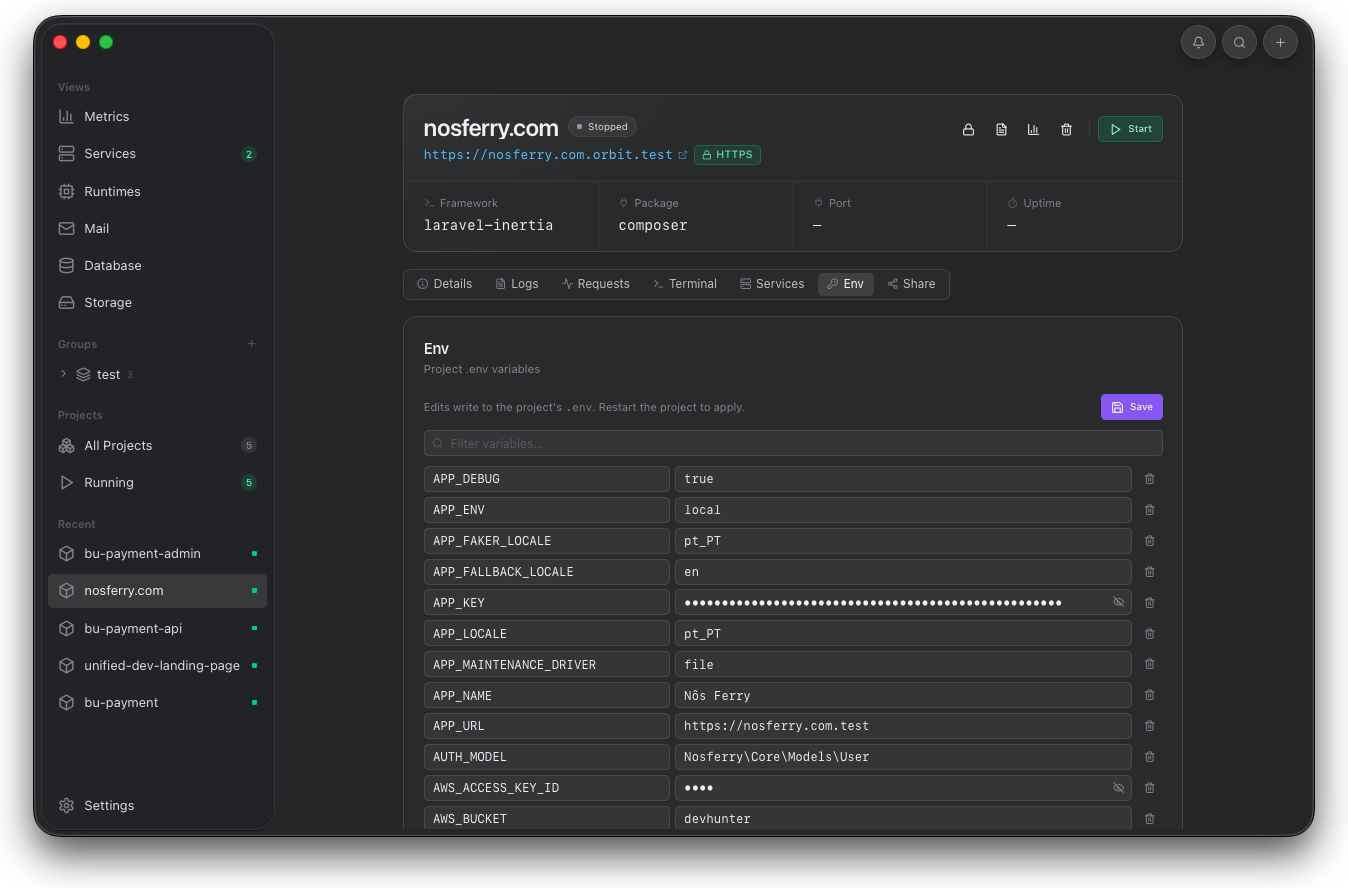
Use Env when the fix is configuration, not code. Orbit keeps project variables editable beside the runtime that reads them.
Terminal
Run commands from the project root.
The Terminal tab opens in the selected folder, keeping package manager, framework, and database commands aligned with the project Orbit detected.
- Open Terminal when a fix needs a local command.
- Run package manager or framework commands from the detected root.
- Return to Logs or Requests to confirm the result.
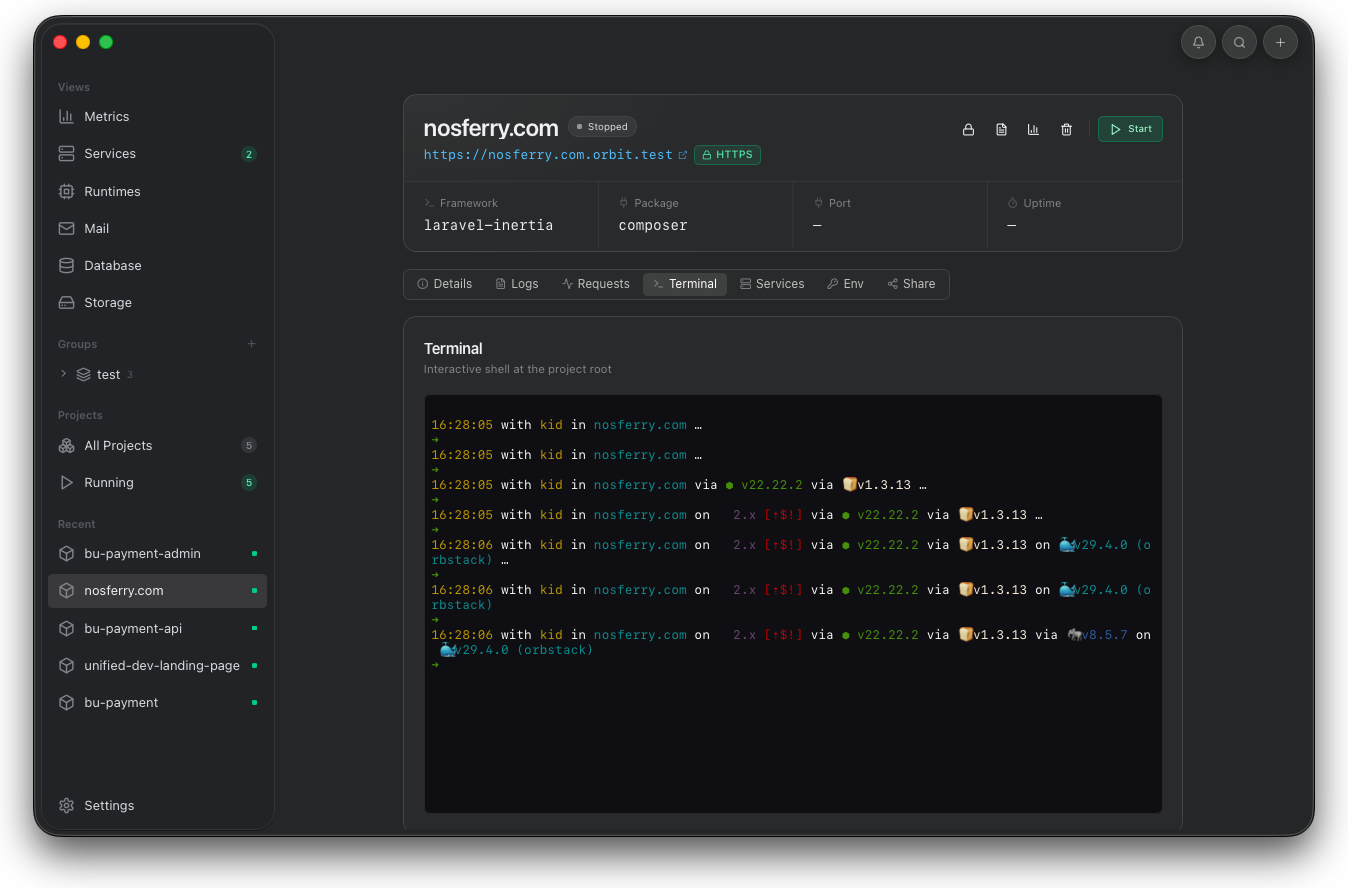
Use Terminal when the next step is a package manager, framework, or database command inside the project folder.